mp3 to midi
Runs locally in your browser

ANDROID BROWSER WORKFLOW

MP3 to MIDI on Android: Pick, Convert, and Find Your File

On an Android phone, open this page in a browser, tap Choose audio, select one saved MP3 or other listed format, then tap Convert to MIDI and Download .mid. The file is decoded and analyzed on your device. If the audio cannot be decoded, the format label alone does not make it compatible. To find a completed download in Chrome for Android, check Chrome Downloads or the Files app.

TEST YOUR FILE

Convert a file in this browser

Select one audio file, inspect the result, then save the .mid.

INPUT  MP3 / WAV / M4A / FLAC / OGG → OUTPUT  .MID

Drop one audio file here

or click to choose audio from your device

Choose audioMP3, WAV, M4A, FLAC, or OGG · one file · up to 50 MB / 5 minutes
Or record a short sound with your microphone.

Your audio stays on your device. All processing happens in this browser. No file is uploaded to a server.

No sign-upOne file at a timeNo watermark

PICK THE FILE

Use the saved audio file, not its name alone

Tap the upload area and select one actual MP3, WAV, M4A, FLAC, or OGG file from the phone's picker. The page checks the extension and size first. It then calls the browser's audio decoder on the full file. An accepted extension is therefore only the first gate; a file with an unsupported encoding can still fail to open. MDN's decoder reference explains this browser step.
SAVE THE RESULT

Check the file after download

After the note preview appears, tap Download .mid. The script creates a MIDI Blob and asks the browser to save it with the source filename plus a .mid extension. Google Chrome Help for Android says completed downloads can be found in the Files app and Chrome's Downloads list. Actual storage prompts and file locations can vary by browser and phone.

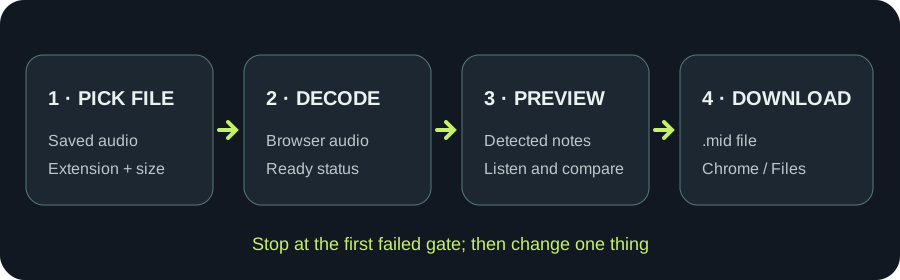
Original Android workflow diagram showing file selection, local decode, MIDI conversion, and a download check
Each stage has a visible stop condition; do not diagnose note quality before the file decodes.

Four observable gates on this page

This checklist follows the current page code. It describes what you can verify in your own browser, not a claim that every Android model or audio codec has been tested here.

StageWhat the page checksVisible signalNext action if it stops
SelectionOne file with a listed extensionThe file card shows its nameChoose the actual audio export, not a renamed file
SizeFile no larger than 50 MBNo over-limit messageUse a shorter or smaller genuine audio file
DecodeBrowser can decode the complete file; decoded duration no longer than 5 minutesReady to analyze; Convert button enabledTry a real standard PCM WAV or MP3 export
ResultDetector finds notes and MIDI writer returns bytesResult panel and Download .mid buttonListen to the source; test a clearer single-note segment

Download this original gate checklist (.csv). For a real download check, open the resulting .mid from Chrome Downloads or Files; the page cannot see where Android saved it.

BEFORE RETRYING

Separate file trouble from note trouble

“This browser could not decode that file” occurs before pitch analysis. Changing Silence threshold, Pitch range, or Minimum note cannot repair that decode failure. Once the status says Ready to analyze, those controls affect note detection; compare the preview against one clear melody before changing them.

TESTED SCOPE

What we actually checked

The site's source code shows a local file read, Web Audio decode, note analysis, and a browser download request. A desktop browser at phone width can check whether the controls fit the screen, but it does not prove the Android file picker or download manager behavior on your device. Use the status messages above to identify your own stopping point.

QUICK ANSWERS

MP3 to MIDI on Android questions

Does this page upload my MP3 to a server?

No. The current script reads the selected file into this browser's audio context and analyzes it locally. The MIDI download is created in the browser.

Why is Convert to MIDI still disabled?

The selected file must finish decoding. If the page shows a decode error or an over-limit message, choose a genuine supported export within the displayed limits.

Where is the .mid file on Android?

Check the browser's Downloads list and the phone's Files app. Google Chrome Help documents both routes; the exact location depends on your browser and device settings.

Will every M4A or FLAC work?

No guarantee. The page accepts those extensions, but your browser still must decode the actual audio encoding. If it fails, export a real MP3 or standard PCM WAV copy and retry.

Can this make all instruments in a song into separate MIDI tracks?

No. This detector follows one dominant pitch at a time. Choose a clear isolated melody for a meaningful first test.